How to organize, show, and hide docks
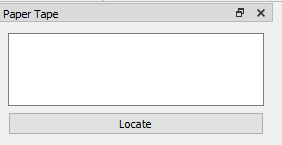
Plover2CAT has multiple dock windows, such as Paper Tape, Suggestions, History, Reveal Steno. They all have a sub-window title, a maximize icon, and a close icon.
Moving and organizing docks
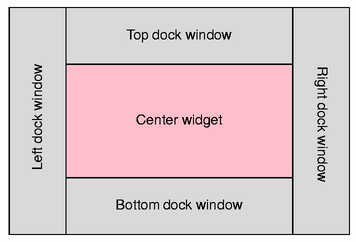
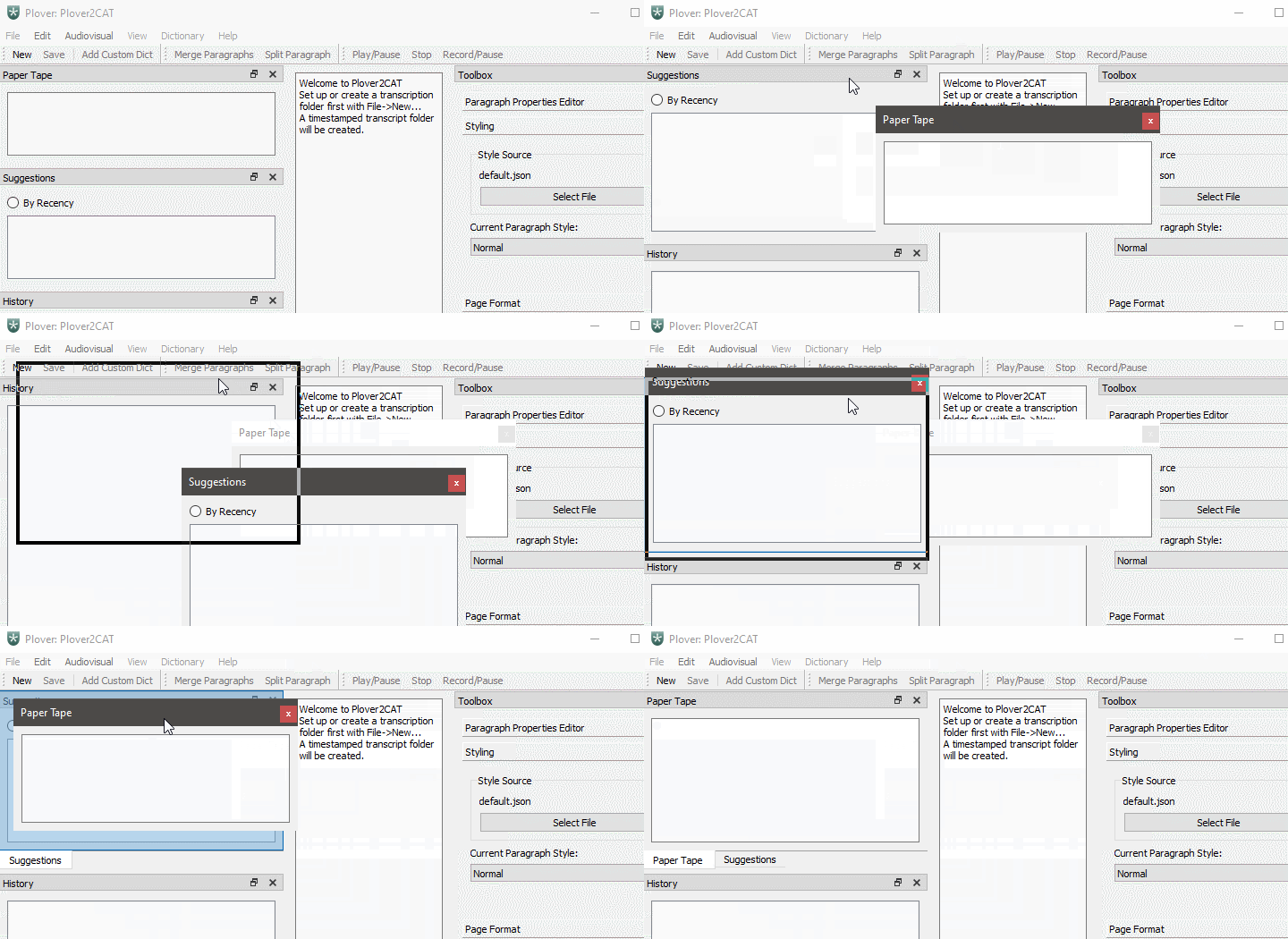
To pop the dock free of the main window, there are 2 ways: 1) click on the sub-window title and drag or 2) click the maximize icon. To put the dock back into the main window, click the dock title and drag it over the main window. The dock can be placed on the left, right, top, and bottom parts of the window.
See this image for the locations.
To stack docks together, drag one dock on top of another.
Show and hide docks
To hide a dock, click the close icon beside the maximize icon and the dock will close.
Once a dock is closed, there are two ways to open it again. The first way, go to View > Docks. Show and hide any of the docks by clicking the items in Docks. The second option is to right-click on the toolbar area (area with the icons under the menu bar at the top of the window). Then click on the different dock names to show/hide them.